An IPTV setup can run on many common devices in Canada, but compatibility depends on three separate pieces working together: your subscription, a compatible IPTV player, and the hardware that runs that player. A Smart TV may be the simplest option in one household, while a Fire TV device, Android TV box, phone, tablet, or computer may offer more flexibility in another.
This guide compares the main IPTV device categories, explains what to check before setup, and helps you decide whether to use hardware you already own or add a dedicated streaming device. App availability can vary by device model, operating-system version, app store, and region, so always verify the player you intend to use before buying hardware.
Subscription, player, and device: three different roles
- IPTV subscription: the service access and credentials supplied for your plan.
- IPTV player: the software or application that accepts compatible credentials and presents the viewing interface.
- Streaming device: the Smart TV, stick, box, phone, tablet, or computer that runs the player.
A player does not provide a subscription on its own. Some players also have separate activation fees, licences, or terms, so check both player compatibility and any player-specific requirements.
What devices can you use for IPTV?
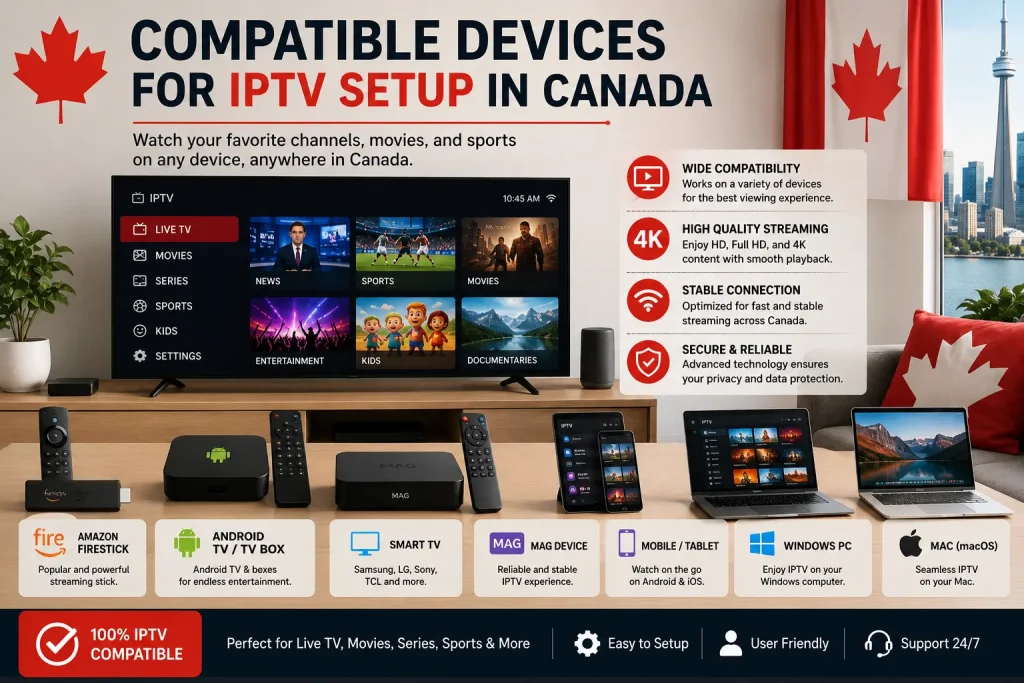
Common IPTV-compatible device categories include Smart TVs, Amazon Fire TV devices, Android TV and Google TV hardware, Android phones and tablets, iPhone and iPad, Windows PCs, and Mac computers. Compatibility is not automatic across every model. The decisive question is whether a suitable player is available for your exact platform and supports the credentials supplied with your subscription.
| Device type | Best suited to | Setup flexibility | Player availability | Remote-friendly | Key consideration |
|---|---|---|---|---|---|
| Smart TV | A simple living-room setup with no extra box | Low to medium | Varies by brand, model, year, and region | Usually | Confirm the player is in the TV’s app store |
| Fire TV / Firestick | Adding streaming capability to an HDMI television | Medium | Check the Amazon Appstore for the exact device | Yes | Fire TV and Android TV use different app stores |
| Android TV / Google TV | A TV-first setup with broader app choice | Medium to high | Varies by Google Play availability and device | Yes | Certified TV platforms differ from generic Android boxes |
| Phone / tablet | A secondary screen or portable setup | High | Check Google Play or Apple’s App Store | No; touch-first | Smaller screen and mobile battery use |
| Windows / Mac | Desk viewing, testing credentials, or travel | High | Desktop software or compatible web options | No; mouse and keyboard | Install software only from trusted sources |
Practical starting point: check the device you already have before buying something new. If its app store lacks a suitable player or the interface performs poorly, an external streaming stick or box may be the simpler upgrade.
What you need before setting up IPTV
A workable setup needs more than a screen. Confirm these items before entering any credentials:
- Active subscription details. Keep the credentials and setup information supplied for your plan available, but do not post or share them publicly.
- A compatible player. The player must run on your device and accept the credential format supplied by the service.
- An internet-connected device. Update the device software, confirm the date and time are correct, and sign in to the appropriate app store if required.
- A stable home network. Test the connection near the device, not only beside the router. Wi-Fi strength can be very different across rooms.
- Enough storage and memory. Low storage, outdated software, or too many background apps can make a player slow or unstable.
FoxTele’s homepage device check provides a quick overview of supported setup categories. For a model-specific question, use the FoxTele Canada contact options before placing an order.
Smart TVs: convenient, but model support matters
A Smart TV can provide the cleanest setup because the player runs directly on the television. There is no extra HDMI device, power adapter, or second remote. This is attractive for a shared living room and for viewers who value a simple launch experience.
Check the exact TV, not only the brand
Samsung and LG televisions use their own app ecosystems, and available apps can differ by model year and software version. Samsung Canada’s app-installation guidance specifically notes that steps vary by model and software, and that an unavailable app may be incompatible with an older TV. Search the television’s app store for the intended player before assuming it will work. For platform-specific steps across Samsung, LG, Android TV, and Google TV, see how to install IPTV on Smart TV.
When an external device is simpler
An external streamer can be useful when the TV’s store lacks a suitable player, the interface is slow, software updates have ended, or remote navigation is awkward. Adding a compatible device can extend an otherwise usable television without replacing the entire screen. It also makes future changes easier because the streaming hardware can be replaced independently.
Amazon Fire TV and Firestick
A Fire TV Stick is a compact, remote-controlled option for a television with a compatible HDMI input. It can be easier to manage than a TV’s built-in app system and is designed for viewing from a couch rather than navigating with a mouse or touch screen.
Do not assume that every Android TV app is automatically available on Fire TV. Amazon’s official Fire TV platform documentation explains that Android TV uses Google Play while Fire TV uses the Amazon Appstore. Check the Amazon Appstore on the exact Fire TV model and prefer official installation sources. Installation methods and store availability can change over time.
Before setup, connect the device to power, complete operating-system updates, confirm there is free storage, and test the remote. If the device sits behind a wall-mounted TV, its Wi-Fi reception may differ from a phone held in the same room. For the complete setup sequence, see how to install IPTV on Firestick.
Android TV and Google TV
Android TV and Google TV are available in integrated televisions, streaming devices, and set-top boxes. They often provide a flexible TV-first environment with remote-friendly apps and access to Google Play where supported.
The names describe related but not identical experiences. Google’s Canadian Google TV information explains that Google TV is an interface built on the underlying Android TV operating system, while some Android TV devices do not use the Google TV interface. App, feature, and regional availability can still vary.
When comparing boxes, verify that the product runs a TV-oriented, supported platform and receives software updates. A generic device labelled only “Android box” may use a phone-style version of Android, which can create remote-control, app-store, or update limitations. Check the operating system, official app store, remote design, ports, update policy, and return terms rather than relying on the word Android alone. For a dedicated installation walkthrough, see our Android TV and Google TV IPTV setup guide.
Phones and tablets
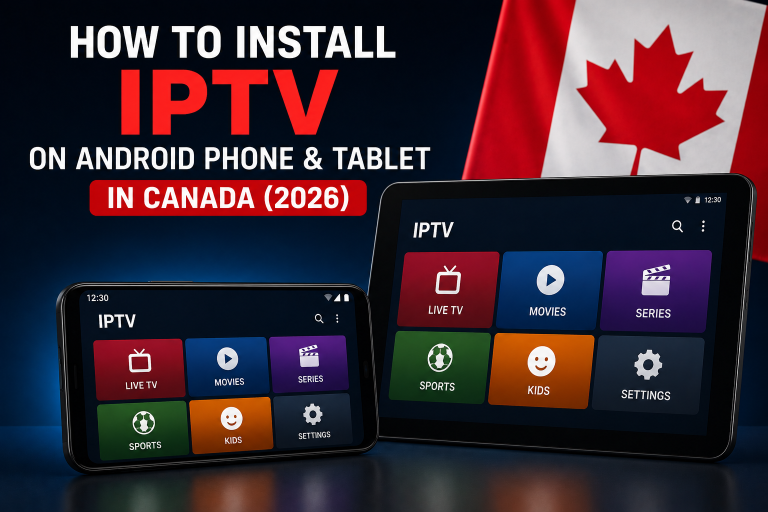
Android phones and tablets
Android mobile devices are useful for checking credentials, watching on a secondary screen, or troubleshooting away from the television. Choose a player from a trusted publisher, verify that it supports your Android version, and review its permissions. A touch-first mobile player may not offer the same remote-friendly interface as its TV counterpart. For a mobile-specific walkthrough, see our Android phone and tablet IPTV setup guide.
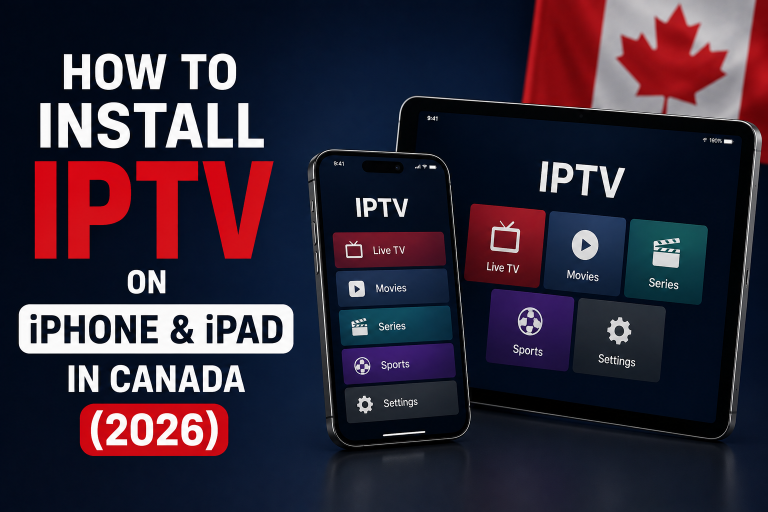
iPhone and iPad
iPhone and iPad also require a compatible player from Apple’s App Store. Review the app’s compatibility information before installing it. Apple Support Canada explains that an App Store listing shows device compatibility and that availability can vary by country or region. An app available on one Apple device or in one region should not be assumed to be available everywhere. For a dedicated walkthrough, see our iPhone and iPad IPTV setup guide.
Phones and tablets are convenient, but casting or screen mirroring is a separate capability. It depends on the player, receiving device, network, and platform permissions; it is not guaranteed simply because playback works on the mobile screen.
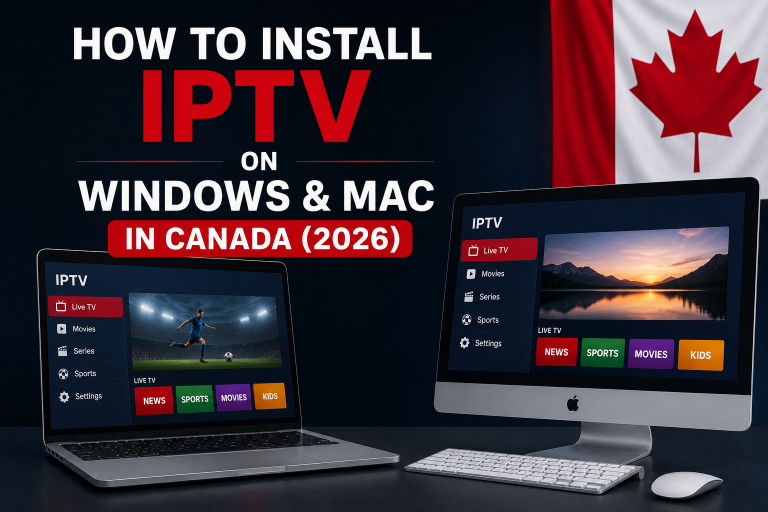
Windows PCs and Mac computers
A Windows PC or Mac can be practical for desk viewing, travel, or confirming that subscription credentials work before troubleshooting a television. You still need compatible player software or another supported access method. The computer’s operating-system version, security settings, and player support all matter.
Download software only from the official developer, the platform’s store, or another source you can verify. Microsoft’s guidance for installing Windows programs likewise recommends downloading from trusted publishers and websites. Avoid cracked players, modified packages, unofficial activation sellers, and download pages that disguise advertising as an installer. For a desktop-specific walkthrough, see our Windows and Mac IPTV setup guide.
How to choose the right IPTV device
There is no single device that is right for every Canadian household. Use these questions to narrow the choice:
- Can your current device run a suitable player? If yes, start there before purchasing hardware.
- Is this mainly for a television? A TV-oriented platform with a physical remote is usually more comfortable than a touch or desktop interface.
- How important is app choice? Smart TV stores can be narrower, while external platforms may provide more options. Availability still requires verification.
- Can the device use Ethernet? A wired connection can remove Wi-Fi interference as a variable. Some sticks require a compatible adapter, while many boxes and televisions include a port.
- Does the device receive updates? Security and app compatibility can decline when an operating system is no longer supported.
- Who will use it? Consider remote simplicity, readable menus, accessibility features, and whether other household members can reopen the player easily.
Device labels such as “4K” describe an output capability, not a guarantee that every stream, app, television, connection, or subscription item will be available in that resolution. Match the hardware to your screen and network without treating a resolution badge as a performance promise.
Internet connection and device performance
A stable connection matters, but speed is only one part of the experience. Router placement, walls, interference, household network congestion, device hardware, available memory, player behaviour, and the quality of the selected stream can all affect playback.
- Test the device in its actual location, especially if it is hidden behind a television.
- Use Ethernet where practical to compare a wired connection with Wi-Fi.
- Restart the device and router when diagnosing a temporary network issue.
- Pause large downloads or backups on other devices while testing.
- Keep the operating system and player current, and remove unused apps if storage is low.
No device can guarantee zero buffering or uninterrupted playback. A useful troubleshooting process changes one variable at a time: test another stream, compare wired and wireless connections, try the same credentials on a second compatible device, and note whether the issue follows the device, player, network, or stream.
Common device and setup problems
The player is not in the app store
Confirm the exact app name, publisher, device model, operating-system version, and store region. If the app genuinely is not compatible, use a different verified player or a supported external device instead of downloading an unknown package.
Credentials are rejected
Check for typing errors, extra spaces, and the correct field order. Confirm that the player accepts the format you were given. Do not share a screenshot containing credentials in a public forum. If details still fail, contact support so the order status and credentials can be checked.
Playback pauses or buffers
Compare more than one stream, check other internet activity, move closer to the router, or test Ethernet. If another device on the same network works normally, focus on the first device’s player, storage, updates, and Wi-Fi reception.
The app closes or feels slow
Restart the device, install available updates, close unused apps, and check free storage. If the problem persists on older Smart TV hardware, a current external streamer may be more practical than repeatedly reinstalling the same player.
The remote does not navigate properly
The application may have been designed for touch screens rather than televisions. Look for a TV-specific, remote-friendly version or choose a player designed for the device’s operating system.
IPTV device FAQs
What devices work with IPTV in Canada?
Common options include compatible Smart TVs, Fire TV devices, Android TV or Google TV hardware, phones, tablets, Windows PCs, and Macs. The exact device must be able to run a player that supports your subscription credentials.
Can I use IPTV directly on a Smart TV?
Yes, when a suitable player is available for the exact TV model and operating system. If the app is unavailable or the TV performs poorly, a compatible external streaming device may be easier.
Does IPTV work on a Firestick?
A Fire TV Stick can run compatible player apps, but app availability depends on the Amazon Appstore, device model, software version, and region. Confirm the intended player before setup.
Do I need an IPTV player?
Yes. The subscription supplies access credentials, while the player is the application used to enter and use those credentials on a supported device.
Can I use IPTV on an iPhone or iPad?
Yes, if a compatible player is available in the App Store for your device, software version, and region. The player and subscription remain separate products or services.
Can I use IPTV on a Windows PC or Mac?
Yes, with compatible desktop software or another supported access method. Install software from trusted official sources and keep the operating system and player updated.
Is Ethernet better than Wi-Fi for IPTV?
Ethernet can provide a stable connection and removes wireless interference as a variable, but a well-positioned Wi-Fi connection can also work. Results depend on the network, hardware, player, and stream.
Why does the same subscription behave differently on two devices?
Devices can differ in processing power, memory, Wi-Fi reception, software version, player implementation, and available storage. Comparing the same credentials on two devices can help identify which factor needs attention.
For more subscription, billing, setup, and policy answers, visit the full FoxTele Canada FAQ.
Choosing your FoxTele subscription
Once you have confirmed a suitable device and player, choose the subscription period that fits your plans. FoxTele Canada currently lists 3 months at $34.99 CAD, 6 months at $54.99 CAD, and 12 months at $79.99 CAD. FoxTele uses zero auto-billing, so renewal remains customer-controlled.
Review the current FoxTele Canada subscription plans before ordering. You can also learn more about FoxTele’s approach and review the current service information on the site.
Need help confirming your device?
Tell FoxTele which device model and IPTV player you plan to use before you order.