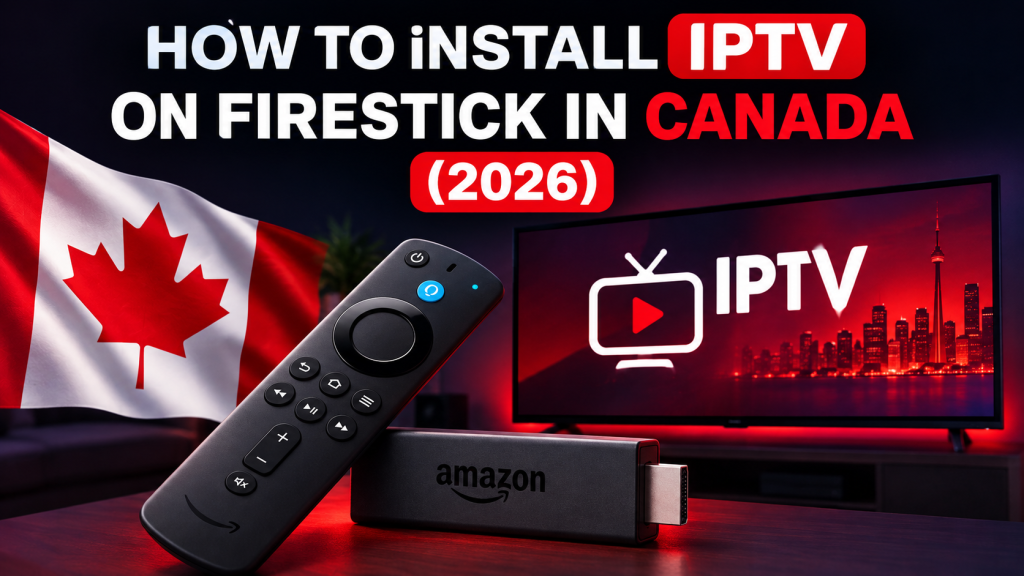
To use IPTV on an Amazon Fire TV Stick, install a compatible IPTV player, then add the credentials supplied with your subscription. The Firestick is the hardware, the player is the application, and the subscription provides access. Keeping those roles separate makes setup—and troubleshooting—much easier.
This guide gives viewers in Canada an app-store-first setup process. Fire TV menus, player availability, and compatibility can vary by device model, Fire TV software version, account region, and app publisher. If a player is not available from a source you can verify, choose another compatible player or device rather than downloading an unknown package.
Can you use IPTV on an Amazon Firestick?
Yes. A Fire TV Stick can run a compatible media player and connect it to valid subscription credentials. It is a TV-oriented device with a physical remote, which can make it more convenient in a living room than using a phone or computer.
Compatibility still needs to be checked on the exact Fire TV model. A player available on Android TV is not automatically available on Fire TV because the platforms use different stores. For a broader comparison of Fire TV, Smart TVs, Android TV, phones, tablets, and computers, see the IPTV device compatibility guide.
Understand the three parts of the setup
- Fire TV Stick: the physical streaming device connected to your television.
- IPTV player: the application that accepts compatible subscription details and displays the viewing interface.
- IPTV subscription: the service access and credentials used inside the player.
Installing a player does not include a subscription. FoxTele supplies the subscription service; third-party players remain separate and may have their own pricing, activation requirements, features, privacy practices, or terms.
What you need before installing IPTV on Firestick
- A Fire TV Stick connected to a compatible television input and a suitable power source.
- An internet connection available where the Firestick will actually be used.
- An Amazon account configured on the device so you can access its app store.
- A compatible, remote-friendly IPTV player from a publisher you can verify.
- Your subscription details, kept private and entered exactly as supplied.
- Enough free device storage for the player and its temporary data.
If you have not yet confirmed whether Fire TV fits your household, use the FoxTele homepage device check before ordering.
Step 1: Choose a compatible IPTV player
Start with the Amazon Appstore on the Fire TV device. Search for a player that supports both Fire TV remote navigation and the credential format supplied with your subscription. Player names, listings, and availability can change, so verify the publisher shown in the current listing rather than relying on an old tutorial or download code.
Amazon’s official Fire TV platform documentation explains that Fire TV uses the Amazon Appstore, while Android TV uses Google Play. Similar-looking applications in different stores are not necessarily the same release or from the same publisher.
Before installing, check:
- The developer or publisher name
- Fire TV compatibility shown in the listing
- Whether the interface supports a television remote
- Supported login or playlist formats
- Any separate player licence or activation requirement
Step 2: Install the IPTV player from the Amazon Appstore
- From the Fire TV home screen, open Find, Search, or the apps area. The label can vary with the current Fire TV interface.
- Enter the exact name of the compatible IPTV player.
- Open its store listing and verify the publisher, description, and device compatibility.
- Select Get or Download and wait for installation to finish.
- Select Open. If needed later, find the player in the Fire TV apps library or under installed applications.
If the intended player does not appear, first check the spelling, account region, device software, and exact Fire TV model. Do not enter an unknown Downloader code or install an APK from an unverified mirror. Use verified official developer instructions if legitimate direct distribution is available, choose another compatible Appstore player, or consider another supported device.
Step 3: Add your IPTV subscription details
Open the player and choose its option for adding a playlist, account, or user. The exact labels differ between applications. A compatible player may request a playlist address or a combination such as a server address, username, and password. Use only the details supplied for your subscription.
- Give the profile a recognizable local name, such as “Living Room,” if the player asks for one.
- Select the login method that matches the information you received.
- Enter every value exactly, preserving capitalization and punctuation.
- Save or add the profile, then allow the first synchronization to finish.
Do not post credentials in public forums, reuse them in unknown applications, or send screenshots that reveal private server details. If entering text with the remote is difficult, use a supported input method offered by Fire TV or the player rather than moving credentials through an untrusted website.
Step 4: Check channels and the program guide
After the initial load, test the setup methodically:
- Open several items rather than judging the setup from one stream.
- Confirm that sound, picture, and remote controls behave normally.
- Open the program guide if the player and subscription support one.
- Check the Fire TV date, time, and time zone if guide times appear incorrect.
- Learn where the player refreshes its playlist or guide, but avoid repeatedly forcing refreshes while the first synchronization is still running.
Guide population and refresh behaviour depend on the player and supplied data. A blank guide does not automatically mean the subscription credentials are invalid.
Common Firestick IPTV setup problems
The player will not install or open
Check free storage, confirm the player supports the exact Fire TV model, and restart the device. Install available Fire TV updates before trying again. Amazon’s Fire TV software update instructions place the update check under Settings, then My Fire TV or Device & Software, About, and Check for System Update. Menu labels can differ on some models.
Subscription credentials are rejected
Check that the player’s login method matches the supplied details. Remove accidental spaces, recheck similar characters, and confirm the order is active. Never substitute a price, server, or password copied from an unrelated tutorial. If the same details fail on a second compatible player or device, contact the subscription provider.
Channels pause or buffer
Buffering can involve the home internet connection, Wi-Fi interference, other network activity, device performance, player behaviour, or the selected stream. Test more than one item, pause large downloads, restart the player, and compare the same account on another compatible device when permitted. No Firestick or subscription can guarantee zero buffering.
The Wi-Fi connection is weak
Test signal quality where the Firestick sits, especially when it is hidden behind a wall-mounted television. Move the router or device where practical, reduce nearby interference, and compare a compatible Ethernet setup if your Fire TV model and adapter support it. Do not assume a speed test beside the router represents the connection behind the TV.
The guide is blank or shows the wrong time
Confirm the device time zone, allow the first guide update to finish, and use the player’s refresh option once. Guide availability and time-offset controls vary by player. If channels play but guide data remains missing, ask support whether additional guide information is expected for that setup.
The player is slow or storage is low
Remove unused apps and clear the affected player’s cache. Amazon’s official Fire TV cache guidance uses Settings, Applications, and Manage Installed Applications. Begin with cache clearing. Clearing application data can remove saved logins and settings, so keep the required subscription details available before using that option.
Tips for a better Firestick IPTV experience
- Keep Fire TV software and the selected player current.
- Leave enough storage for updates, guide information, and temporary app data.
- Use a stable power source appropriate for the device.
- Test the network at the television and reduce competing downloads while diagnosing playback.
- Choose a player designed for TV remote navigation.
- Change one troubleshooting variable at a time so you can identify what helped.
- Keep subscription credentials private and remove access from devices you no longer control.
Firestick vs Smart TV vs Android TV
Fire TV Stick: useful when you want a compact, TV-first device with a physical remote and applications from the Amazon Appstore.
Smart TV app: avoids extra hardware, but player choice and performance can depend heavily on the television brand, model year, and operating system.
Android TV or Google TV: uses a different application ecosystem and may offer player options that are not listed for Fire TV. It is not automatically better; the right choice depends on the app you need, remote experience, updates, network, and existing hardware.
If your current Firestick cannot run a verified compatible player, choosing another supported platform is safer than forcing an untrusted installation method.
Frequently asked questions
Can you use IPTV on Firestick?
Yes. A Fire TV Stick can run a compatible IPTV player and use valid subscription credentials. Player availability depends on the exact device, software version, store region, and publisher support.
Do I need an IPTV player on Firestick?
Yes. The Firestick is the hardware and the subscription provides access; a compatible player is the application that connects the two. Installing the player alone does not provide a subscription.
Which IPTV player works on Firestick?
Choose a current, remote-friendly player listed for your exact Fire TV device that supports the credential format you receive. Verify the publisher in the Amazon Appstore because player availability can change.
Why is IPTV buffering on my Firestick?
Possible factors include Wi-Fi conditions, other network activity, device resources, the player, the selected stream, or the internet connection. Test several items and change one variable at a time instead of assuming one cause.
Can I use the same subscription on another device?
That depends on the subscription’s device and simultaneous-stream rules. FoxTele Canada device or simultaneous-stream limits should be confirmed with support rather than assumed.
Does IPTV on Firestick require a VPN?
A VPN is not inherently required for Fire TV hardware or an IPTV player to operate. If you choose to use one for an appropriate privacy or security purpose, follow applicable law and the relevant service, content, and player terms. Do not use it to evade access or geographic restrictions.
What should I do if the IPTV app does not load?
Restart the Firestick, check for software and player updates, confirm free storage, and clear the player’s cache. If only one player fails, try another verified compatible player before changing the subscription details.
For more setup, billing, renewal, and policy answers, visit the FoxTele Canada FAQ. For an order-specific issue, use the contact page.
Need help setting up FoxTele on Firestick?
If you already have a FoxTele subscription and need help with your Firestick setup, tell support which Fire TV model, player, and error you see. If you are still choosing a plan, compare the available FoxTele Canada subscription options first.