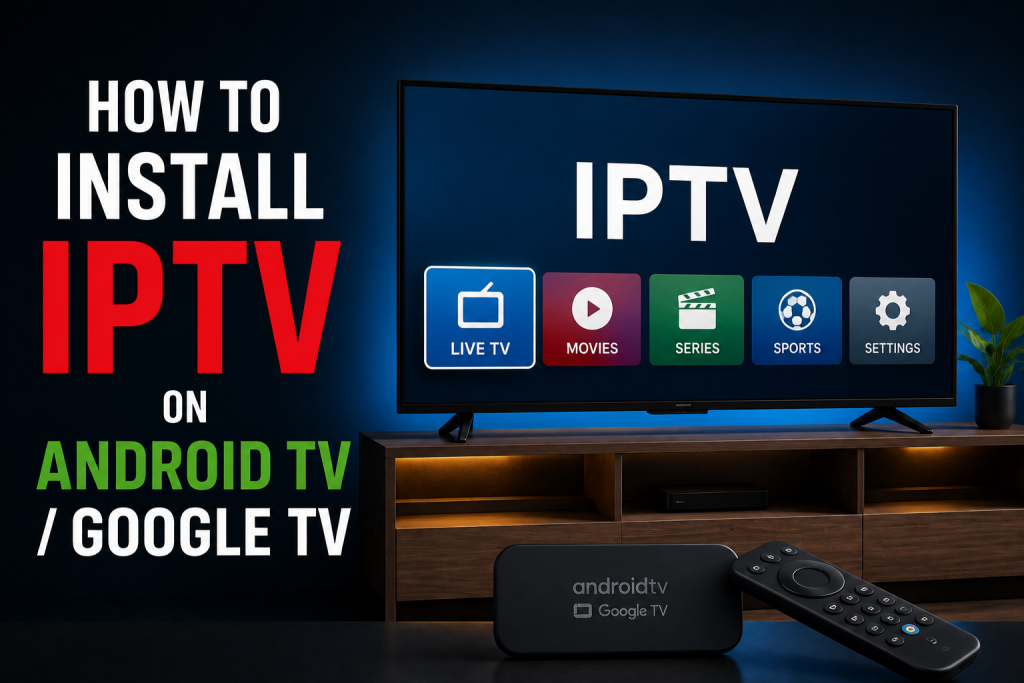
To install IPTV on Android TV or Google TV, open Google Play on the television or streaming device, install a compatible TV-oriented IPTV player, and add the subscription details supplied by your provider. Google TV is built on Android TV OS, so the overall setup is similar, but the home screen, menu labels, available apps, and manufacturer settings can differ.
This guide focuses specifically on Google Play installation, player selection, credential entry, channel and EPG checks, storage, and troubleshooting for Android TV and Google TV users in Canada. For a broader comparison with Fire TV, Samsung, LG, mobile devices, and computers, see the IPTV device compatibility guide.
Can you use IPTV on Android TV and Google TV?
Yes, when the device can install a compatible IPTV player and connect reliably to the internet. Android TV and Google TV are designed for television interfaces, so compatible applications should work with a remote rather than requiring phone-style touch controls.
Compatibility still depends on the exact device. A television with Android TV, a Google TV streaming device, and an Android TV box can use related software but differ in storage, memory, processor performance, ports, software version, manufacturer changes, region, and Google Play listings. Search from the device itself before assuming that an application mentioned in an older tutorial remains available.
Android TV vs Google TV: what matters for IPTV setup?
Google’s Canadian Google TV overview explains that Google TV is an experience powered by an underlying operating system called Android TV OS. Some televisions and streaming devices run Android TV OS without the Google TV interface; those are described as Android TV devices.
What the platforms share
- A television-oriented operating environment designed for remote navigation
- Access to compatible TV applications from Google Play where supported
- App management and account features linked to the device’s Google setup
- Similar player installation and subscription-entry concepts
What can differ
The launcher, tabs, search placement, settings paths, manufacturer features, software updates, and available apps may differ. Google’s Android TV and Google TV consumer guidance notes that tabs can depend on country or language and that manufacturers may add their own sections. App developers can also add or remove Play Store availability.
That means the credential-entry stage may be nearly identical in the same player, while the steps used to find that player can look different on Android TV and Google TV.
Device, IPTV player, and subscription are separate
- Android TV or Google TV device: the television, streaming device, or TV box providing the hardware and platform.
- IPTV player: the third-party application used to load compatible access details and navigate content.
- IPTV subscription: the separate service access and credentials used inside the player.
Installing a player does not provide channels or activate FoxTele. FoxTele supplies the subscription service. Third-party players may have separate premium features, activation costs, account systems, privacy practices, licensing, and terms.
What you need before installing IPTV
- An Android TV or Google TV television, streamer, or box with its current software installed
- A Google account configured on the device so Google Play can be used
- A stable internet connection where the device is actually located
- A compatible, remote-friendly IPTV player from a publisher you can verify
- The private subscription details supplied for your order
- Enough free storage for the player, updates, guide information, and temporary data
If you have not confirmed the hardware yet, use the homepage device check before choosing a setup.
Step 1: open Google Play on your TV
On Android TV, open the Apps area and select Google Play Store. On Google TV, use the Apps tab or Search. Some Google TV interfaces do not show a separate Play Store icon prominently because app discovery is integrated into the home experience.
Google’s official instructions distinguish the two paths:
- Android TV app guidance directs users to Apps, Google Play Store, then browse or search.
- Google TV app guidance directs users to Search or the Apps tab, then Install when an app page is available.
If the device is using a limited or basic mode without a Google account, app search and installation may not be available. Menu wording can also change with the manufacturer and software release.
Step 2: choose a compatible IPTV player
Search Google Play from the TV for a player that supports the access format supplied with the subscription. Do not choose solely by a familiar name. Confirm that the listing is intended for Android TV or Google TV, works with a remote, comes from the expected developer, and is compatible with the exact device.
Before installing, review:
- The developer or publisher shown in Google Play
- Whether the application supports TV remote navigation
- The login or playlist formats it accepts
- Its update history and current device compatibility
- Any separate free, premium, or activation terms
A phone version is not automatically suitable for a television, even when it has the same name. Use the TV listing shown on the device rather than sending a mobile application to the TV without checking compatibility.
Step 3: install and open the IPTV player
- Open the verified player listing.
- Select Install and wait for Google Play to finish.
- Select Open, or find the player in the device’s installed apps area.
- Review any permission request and grant only what the documented feature requires.
- Read the player’s own terms, pricing, and activation instructions before continuing.
Google Play is the preferred installation route. This guide does not rely on Downloader codes, cracked applications, modified packages, or unknown APK mirrors. If an official developer distributes a legitimate app outside Google Play, verify the developer and documentation independently before changing device security settings.
Step 4: add your IPTV subscription details
Open the player and choose its option for adding a user, account, or playlist. The exact screen varies. Depending on the player and the access supplied, fields may include a local playlist name, username, password, server address, or playlist URL.
- Select the login method matching the information you received.
- Give the profile a recognizable local name if requested.
- Enter each value exactly, preserving capitalization, punctuation, and the full address.
- Save or add the profile, then allow the initial synchronization to finish.
Do not expose real credentials in screenshots, forums, or public troubleshooting posts. Do not use an unknown converter to change one credential format into another. If the player does not support the supplied format, choose a compatible player or contact support.
Step 5: check channels, categories, and the EPG
After the first load, test the setup in a controlled order:
- Confirm that the expected channel groups have loaded.
- Check movies or series sections only if the subscription and player provide them.
- Open several items rather than judging the setup from one stream.
- Test sound, picture, remote navigation, and back-button behaviour.
- Open the electronic program guide if available and confirm the device time zone.
Players organize content differently. A missing category or guide can involve the player interface, guide refresh, supplied data, time zone, or account—not necessarily the Android TV or Google TV platform itself.
What if the IPTV player is not available?
Search the exact player name in Google Play on the device. Check the developer’s official documentation, device software, active Google profile, and region. Availability can differ by manufacturer, model, OS release, Google Play compatibility, country, and developer decisions.
If the listing is absent or marked incompatible:
- Install available device and Google Play updates.
- Confirm the device actually runs Android TV OS rather than a phone-style Android build.
- Choose another verified, remote-friendly player supporting the required credential format.
- Use another supported streaming device if the hardware or store cannot provide a suitable player.
A random APK is not a safe substitute for a missing official listing. An older package may be incompatible, modified, abandoned, or designed for touch input.
Common Android TV and Google TV IPTV problems
The IPTV app will not install
Confirm the listing supports the exact device, check the active Google account and network, install system updates, and make free storage available. If Google Play marks the device incompatible, do not force the phone version onto the TV.
Login details are rejected
Make sure the selected login method matches the supplied format. Remove accidental spaces and recheck similar characters. If the same details fail in another compatible setup, contact support instead of changing server information based on an unrelated tutorial.
Channels do not load
Allow the initial synchronization to finish, verify that the device is online, and restart the player once. Test several items. Record the exact error and whether account menus or categories load before requesting help.
Playback keeps buffering
Buffering can involve internet stability, Wi-Fi signal, router distance, household traffic, stream quality, player software, or device performance. Test the network at the TV, pause large downloads, restart the player and router when appropriate, and compare a wired connection if the specific device supports Ethernet. No player or device can guarantee zero buffering.
The EPG is missing or shows the wrong time
Confirm the device date, time, and time zone. Allow the initial guide import to finish, then use the player’s refresh option once. Guide availability and offset settings vary by player and supplied data.
The app is slow or closes unexpectedly
Restart the app and device, install player and system updates, and close unnecessary applications. Google’s Google TV troubleshooting guidance recommends checking Wi-Fi, system updates, restarting, verifying the active profile, and then clearing app data if earlier steps fail. Clearing data can remove saved credentials and settings, so keep them available before using it.
There is not enough storage
Remove applications you no longer use and check for partially completed downloads or large app data. Official Android TV guidance provides uninstall and update options through Settings or Google Play. Avoid deleting player data until you understand what login information and local settings will be removed.
Tips for better IPTV performance
- Keep device software and the IPTV player current through official update channels.
- Leave enough free storage for application updates, guide data, and temporary files.
- Test connection quality where the TV or box is installed, not only beside the router.
- Use Ethernet only when the device genuinely supports it, directly or through a compatible adapter.
- Reduce competing downloads and streams while isolating a playback problem.
- Choose a player designed for a television remote and the credential format you receive.
- Change one troubleshooting factor at a time so you know what helped.
Android TV and Google TV vs Firestick and other Smart TVs
Android TV and Google TV are useful when the required TV-oriented player is available through Google Play and you prefer that ecosystem. Fire TV uses the Amazon Appstore and a different interface. Samsung and LG televisions use Tizen and webOS rather than Android TV OS.
For Fire TV-specific steps, see how to install IPTV on Firestick. For platform identification and native Samsung or LG installation, use the broader Smart TV IPTV setup guide. The best route is the one that supports a verified player, usable remote navigation, dependable updates, and your actual network conditions.
Frequently asked questions
Can I install IPTV on Android TV?
Yes, when Google Play offers a compatible TV-oriented IPTV player for the device and you have valid subscription credentials. Availability can vary by model, region, software version, and developer support.
Can I use IPTV on Google TV?
Yes. Google TV runs on Android TV OS and can install compatible television applications through its Apps area or Search. The exact interface can differ by device manufacturer and software release.
Is Google TV the same as Android TV?
They are closely related but not identical user experiences. Google TV is powered by Android TV OS. Some devices run Android TV OS without the Google TV interface, so navigation and home-screen organization can differ.
Which IPTV player works with Android TV or Google TV?
Use a current player shown as compatible in Google Play on the exact device. Confirm the developer, remote support, accepted credential format, update status, and any separate premium or activation terms rather than assuming one player is universally best.
Do I need a separate IPTV subscription?
Yes. The player is only the application. The IPTV subscription supplies the separate service access and credentials. Installing a player alone does not provide channels or FoxTele service.
Why can’t I find an IPTV app in Google Play?
The app may not support the device, region, manufacturer implementation, or current OS version, or the developer may have changed its listing. Update the device, verify official developer support, or choose another compatible player rather than using an unknown APK.
Can I use Ethernet instead of Wi-Fi?
Yes, when the television or streaming device has a supported Ethernet connection or compatible adapter. Wired networking can reduce Wi-Fi variables, but performance still depends on the internet connection, device, player, household traffic, and stream quality.
Do I need a VPN for IPTV on Google TV?
A VPN is not inherently required for Android TV, Google TV, an IPTV player, or a subscription to operate. If you use one for an appropriate privacy or security purpose, follow applicable law and the terms of the service, player, platform, and content provider. Do not use it to evade access or geographic restrictions.
For additional setup, billing, renewal, and policy answers, visit the FoxTele Canada FAQ. For an order-specific issue, use the contact page.
Need help setting up FoxTele on Android TV or Google TV?
Already have a FoxTele subscription? Contact support with the device manufacturer, exact model, platform, player name, and error if you need help selecting a compatible player or entering your subscription details. If you are still comparing plans, review the available FoxTele Canada subscription periods first.