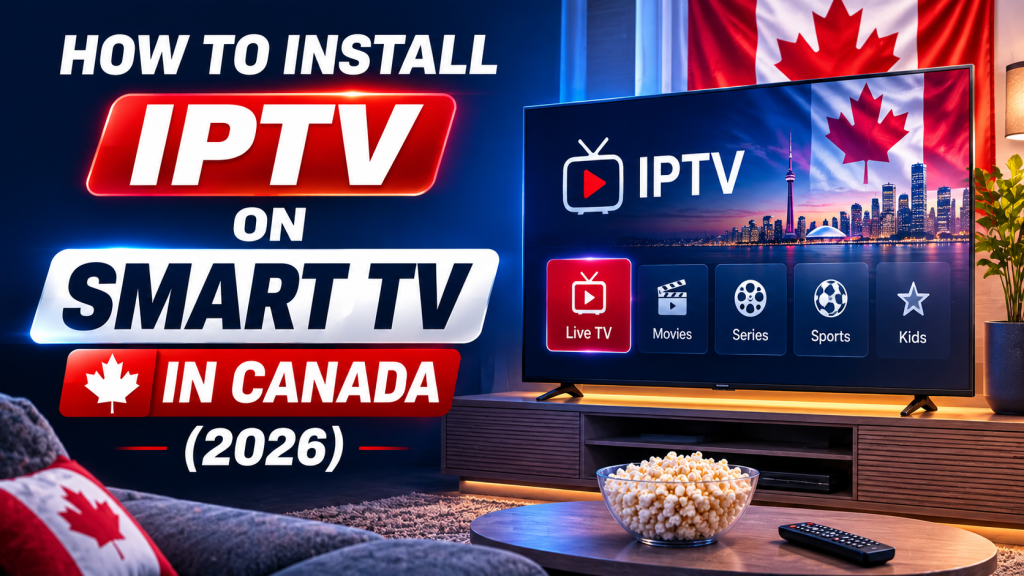
To install IPTV on a Smart TV, first identify the television’s operating system, then install a compatible IPTV player from its official app store and add the credentials supplied with your subscription. Samsung, LG, Android TV, and Google TV do not use one universal app store, so the correct setup path depends on the exact TV platform, model, software version, and Canadian store region.
This guide gives Smart TV owners in Canada an official-store-first setup process without assuming that one player works everywhere. For a wider comparison of televisions, Fire TV devices, mobile devices, and computers, see the IPTV device compatibility guide.
Can you use IPTV on a Smart TV?
Yes, if the television can run a compatible IPTV player and connect reliably to the internet. A native TV app can be convenient because it avoids another HDMI device and remote. Compatibility is not guaranteed by the words “Smart TV,” however. The television must offer a suitable player for its operating system, and that player must accept the subscription format you receive.
Before ordering or changing players, note the TV’s full model number, software version, country or region setting, and operating system. Search the official app store on that exact television. A player listed on a phone, Firestick, or Android TV may not have a Samsung Tizen or LG webOS version.
First, identify your Smart TV platform
Open the television’s Settings menu and look under Support, System, Device Preferences, About, or TV Information. Menu names change between brands and model years, so the model label and manufacturer support page are more dependable than a generic tutorial.
Samsung Smart TV
Supported newer Samsung Smart TVs use the Tizen application platform, not Android TV. Samsung’s official platform documentation explains that 2016 and later models run Tizen applications, while 2015 models were a transition and earlier televisions used Samsung’s legacy platform. This is why a Google Play instruction written for Android TV does not apply to a Samsung TV.
LG Smart TV
LG Smart TVs commonly use webOS, a separate TV platform with its own app ecosystem. LG’s webOS TV documentation describes webOS as the platform powering LG Smart TVs and notes that interfaces can differ between versions. Older LG models and different webOS releases may therefore show different menu names or app selections.
Android TV
Android TV devices use Android TV OS and normally obtain TV-compatible applications through Google Play. Do not assume that every television from a particular brand uses Android TV; manufacturers sometimes sell different platform variants. Confirm the operating system on the exact model.
Google TV
Google TV is related to Android TV, but the names are not interchangeable. Google’s Canadian Google TV overview says Google TV is an experience powered by Android TV OS, while some Android TV OS devices do not include the Google TV interface. Their home screens may look different even though both can use compatible TV apps from Google’s ecosystem.
Other televisions may use Fire TV, Roku TV, VIDAA, or another manufacturer-specific system. Follow that platform’s official store and support documentation rather than applying Samsung, LG, or Google steps blindly.
Smart TV, IPTV player, and subscription: three separate parts
- Smart TV: the physical television and its operating system.
- IPTV player: the application that accepts compatible credentials and displays the viewing interface.
- IPTV subscription: the service access and credentials used inside the player.
Installing a player does not include a subscription. FoxTele provides the IPTV subscription service. Third-party players are separate products and may have their own price, activation process, features, privacy terms, or support policies.
What you need before setting up IPTV
- The exact TV brand, model number, operating system, and current software version
- An internet connection that is stable where the television is installed
- The manufacturer account required by the TV’s official app store, where applicable
- A verified, remote-friendly IPTV player listed as compatible with the exact television
- The private subscription details supplied for your order
- Enough free TV storage for installation, updates, and temporary app data
If you have not confirmed the device yet, use the FoxTele homepage device check before choosing a setup.
How to install IPTV on Samsung Smart TV
- Connect the TV to the internet and sign in to the Samsung account required for Smart Hub access.
- From the Home screen, open Search or Apps. The exact layout can change with the model and software.
- Search for a compatible IPTV player by its exact name.
- Open the listing and verify the publisher, model compatibility, supported login method, and any separate player cost.
- Select Install, then Open. Add it to the Home screen if the option is useful.
- Follow the player’s verified setup process to add the subscription details.
Samsung Canada’s official app-installation guide notes that its steps apply to TVs sold in Canada but may vary by model and software. It also explains that an absent app can indicate model incompatibility, particularly on older televisions. Do not respond by trying to install an Android APK on Tizen.
How to install IPTV on LG Smart TV
- Connect the television to the internet and confirm its model and webOS version under TV Information or the closest equivalent.
- Press Home and open Apps or LG Content Store, depending on the installed webOS version.
- Search for a player that supports both LG webOS and the credential format provided with the subscription.
- Verify the developer, supported TV models or webOS versions, pricing, and activation instructions.
- Select Install, launch the app, and follow its official connection workflow.
Use LG’s Canadian Content Store guidance to check app support for the TV model and region. An app available on another LG model or in another country’s store may not be offered on yours. Avoid changing the TV region simply to bypass availability controls; choose a supported player or external device instead.
How to install IPTV on Android TV or Google TV
- Open Settings and verify that the television identifies itself as Android TV or Google TV.
- Connect the TV to the internet and sign in with the Google account used for app installation.
- Open the Apps area, Google Play, or Search, depending on the interface.
- Search for a compatible IPTV player and confirm that the listing is designed for television and supports remote navigation.
- Select Install, open the player, and use the login method matching your subscription details.
Google’s official Google TV app instructions direct users to search or browse the Apps tab and install an app only when its listing is available. A mobile Android app is not automatically a television app, even when both come from Google Play. For a deeper walkthrough covering Google Play, credentials, EPG checks, storage, and troubleshooting, see our Android TV and Google TV IPTV setup guide.
How to add your IPTV subscription details
Open the verified player and select its option for adding a playlist, account, or user. The wording and supported formats differ. A player may request a playlist URL, a server address with username and password, or a device code that is paired through the player’s official website. Use the method that matches the information supplied with your subscription.
- Give the profile a recognizable local name if the player asks for one.
- Choose the matching login or playlist method; do not convert formats through an unknown website.
- Enter values exactly, preserving capitalization, punctuation, and the full address.
- Save the profile and allow the initial channel and guide synchronization to finish.
- Test several items and the program guide before changing settings.
Keep credentials private. Do not post them in forums, share screenshots that expose a server address or password, or enter them into an unverified activation portal. FoxTele supplies the subscription details; the player’s interface and activation process remain the responsibility of its developer.
What if the IPTV player is not available on your TV?
First check the spelling, TV model, operating system, software version, app-store region, and player publisher. Search from the television itself because a browser result may describe a different platform or country. If no suitable verified player is listed, choose another supported player rather than an unknown APK, USB package, activation reseller, or copied download code.
An external supported streaming device is often the cleaner fallback. It can provide a different app ecosystem while leaving the television in place. If Fire TV fits your needs, follow the separate guide on how to install IPTV on Firestick. An Android TV or Google TV streaming device can be another option when the required player is available there.
Common IPTV problems on Smart TVs
The app is not available
Confirm the TV platform and search its official store. Availability can change by model, software version, region, and developer support. If the store does not list the app as compatible, do not assume a phone or Android package can be installed on Samsung Tizen or LG webOS.
Credentials are rejected
Check that the player supports the supplied login format. Re-enter each value without leading or trailing spaces and verify similar-looking characters. If the same credentials fail on another compatible player or device, contact support rather than repeatedly changing server details.
Channels do not load
Allow the first synchronization to finish, confirm the television is online, and test more than one item. Restart the player once. If menus load but every item fails, record the exact error and whether the same account works on another supported setup.
Playback pauses or buffers
Playback can be affected by the internet connection, Wi-Fi signal, router distance, household traffic, TV hardware, player software, or stream quality. Test the connection at the television, pause large downloads, restart the player and router when appropriate, and compare Wi-Fi with Ethernet if the TV supports a wired connection. No setup can guarantee zero buffering.
The program guide is missing or shows the wrong time
Check the TV’s date, time, and time zone, then use the player’s guide refresh once. Guide availability, refresh timing, and time-offset controls vary by application and supplied data. A working channel list with an empty guide does not necessarily mean the credentials are invalid.
The TV is slow or low on storage
Remove unused applications, restart the television, install available manufacturer updates, and update the player from its official store. Clearing app data may remove saved credentials, so keep the required order information available before using a reset option.
Smart TV vs Firestick for IPTV
A native Smart TV setup is attractive when a suitable player is available, the TV performs well, and you want fewer devices and remotes. An external Fire TV device can be more practical when the television’s store is limited, the native interface is slow, or you want streaming hardware that can be replaced independently of the screen.
Neither approach is universally better. Compare the player you need, remote usability, update support, network options, and device performance. Avoid replacing a functioning TV solely because one player is missing when a supported external device can solve the compatibility issue.
Tips for a better Smart TV IPTV experience
- Keep the TV software and player app current through official update channels.
- Maintain enough free storage for updates, guide data, and temporary files.
- Place the router appropriately and test connection quality at the TV, not only beside the router.
- Reduce competing network activity while diagnosing playback.
- Use Ethernet when available and practical, but remember that the TV’s hardware and player still matter.
- Choose a player designed for a television remote rather than a touch-only interface.
- Change one setting at a time so you can identify what actually helped.
Frequently asked questions
Can I install IPTV on any Smart TV?
No. The TV needs a compatible IPTV player for its operating system, model, software version, and store region. If no suitable player is available, a supported external streaming device may be simpler.
How do I know which operating system my Smart TV uses?
Check Settings under Support, System, About, Device Preferences, or TV Information, then confirm the full model number on the manufacturer’s support site. Brand alone is not always enough because product lines can use different platforms.
Do Samsung and LG Smart TVs use the same IPTV apps?
Not necessarily. Supported Samsung TVs use Tizen applications, while supported LG TVs use webOS applications. A developer may publish separate versions, one platform only, or no compatible version for a particular model or region.
Are Android TV and Google TV the same?
Google TV is an experience built on Android TV OS. Some devices run Android TV OS without the Google TV interface. Their screens differ, but both rely on compatible TV applications from Google’s ecosystem.
What should I do if the IPTV player is missing from the TV store?
Verify the model, OS, software, region, and exact player name. Choose another verified compatible player or use a supported external streamer. Do not install an unknown APK or change security settings merely to follow an outdated guide.
Do I need a separate IPTV subscription?
Yes. The player is only the application. A separate compatible subscription supplies the service access and credentials. Third-party player pricing or activation, if any, is also separate from FoxTele.
Why does IPTV buffer on my Smart TV?
Possible causes include Wi-Fi conditions, household network activity, internet stability, television resources, player behaviour, or stream quality. Test several items and change one factor at a time rather than assuming one cause.
Do I need a VPN for IPTV on a Smart TV?
A VPN is not inherently required for a Smart TV, IPTV player, or subscription to operate. If you use one for an appropriate privacy or security purpose, follow applicable law and the terms of the service, player, platform, and content provider. Do not use it to evade access or geographic restrictions.
For more setup, renewal, and policy answers, visit the FoxTele Canada FAQ. For an order-specific question, use the contact page.
Need help setting up FoxTele on your Smart TV?
If you already have a FoxTele subscription, tell support the TV brand, full model number, operating system, player name, and exact error. If you are still deciding which subscription period fits your needs, compare the available FoxTele Canada plans first.