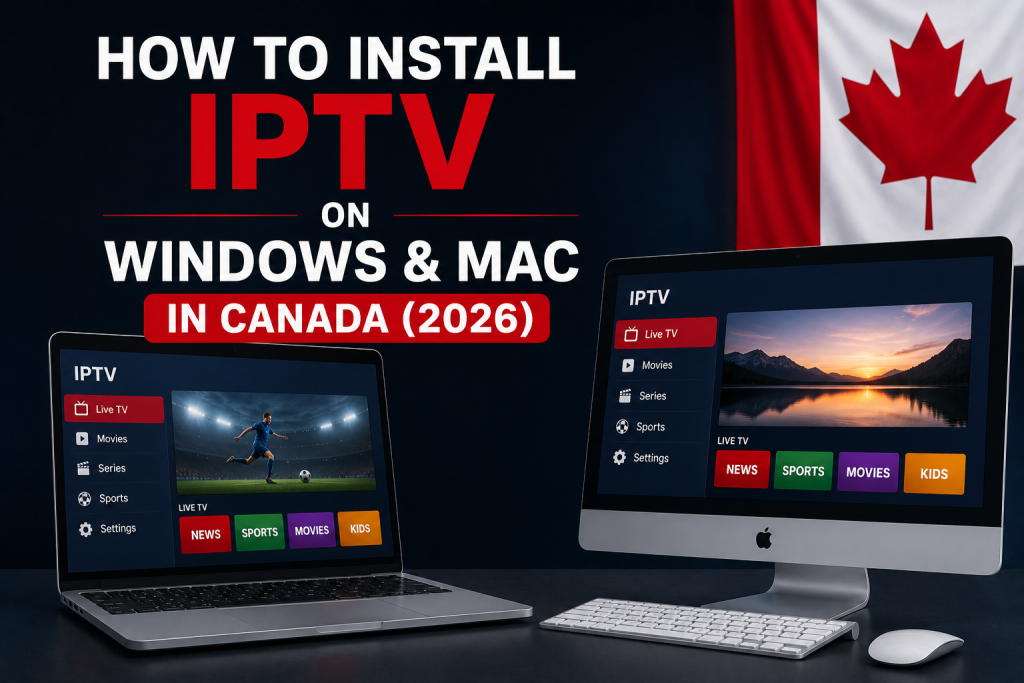
To use IPTV on a Windows PC or Mac, install compatible player software from a trusted source and then add the separate subscription details supplied for your service. Windows and macOS use different stores, installer formats, and security checks, so each platform needs its own installation path even though credential entry is often similar.
This guide covers safe desktop installation, player selection, credential entry, channel and EPG checks, and troubleshooting for computer users in Canada. For a broader comparison with televisions, streaming devices, and mobile platforms, see the IPTV device compatibility guide.
Can you use IPTV on Windows and Mac?
Yes, when the computer can run a compatible IPTV player and maintain a reliable internet connection. A Windows desktop or laptop can use software built for its supported Windows version. A Mac needs a macOS-compatible application built for the Mac’s software and hardware architecture.
Do not assume that a player advertised for PC also has a Mac version, or that a mobile app automatically becomes a full desktop application. Compatibility, features, update support, credential formats, and availability can differ between Windows and macOS.
What you need before setting up IPTV
- A supported Windows PC or Mac with current security updates
- A stable Wi-Fi or Ethernet connection
- A compatible player from the platform store or verified developer
- The private subscription details supplied for your order
- Enough storage and system resources for the player, guide data, and updates
- Administrator approval when a legitimate installer requires it
If you are deciding whether a computer is the right viewing device, review the homepage device compatibility section first.
Computer, IPTV player, and subscription are separate
- Windows PC or Mac: the computer hardware and operating system.
- IPTV player: the third-party software used to load compatible access details and navigate content.
- IPTV subscription: the separate service access and credentials entered into the player.
Installing a player does not provide channels or activate FoxTele. FoxTele supplies the subscription service. A third-party player may have its own one-time licence, premium subscription, activation requirement, account system, privacy policy, features, and terms.
How to choose a compatible desktop IPTV player
Do not choose only by a familiar name or an article claiming one player is best. Confirm that the current version supports the exact operating system, accepted login format, and features you need.
- Windows or macOS compatibility and supported OS versions
- An official Microsoft Store, Mac App Store, or developer source
- Support for the supplied login or playlist format
- EPG, search, categories, and fullscreen functions you actually need
- Recent maintenance and clear developer documentation
- Any separate activation, licence, or premium cost
How to install IPTV on Windows
Choose a Windows-compatible player
Start with Microsoft Store where a suitable application is available. If the required player is not listed, use only the developer’s verified official website. Microsoft’s Windows installation guidance recommends downloading programs only from trusted publishers and websites.
Install the Windows player safely
- Open the verified Microsoft Store listing or official developer page.
- Check the publisher, supported Windows version, licence terms, and download address.
- Use Get in Microsoft Store or download the official installer from the developer.
- Read Windows security and account-control prompts before approving them.
- Open the installed player from Start or its documented location.
Do not disable Microsoft Defender, SmartScreen, the firewall, or antivirus protection as a routine installation step. Microsoft’s App & browser control documentation explains that reputation-based protections help identify unsafe applications, files, websites, and downloads. Investigate a warning and verify the publisher before deciding what to do.
Add the subscription details on Windows
Open the player and select its documented option to add a user, account, or playlist. Choose the login method matching the details you received, enter each value exactly, save the profile, and allow the first synchronization to finish.
How to install IPTV on Mac
Choose a macOS-compatible player
Start with the Mac App Store. Apple’s Mac App Store guidance explains how to search, review, download, and redownload Mac applications. Confirm that the listing supports the Mac and macOS version rather than assuming an iPhone or iPad listing provides the same desktop experience.
Install the Mac player safely
- Use the verified Mac App Store listing where available.
- If the developer distributes the app directly, use only its official website.
- Confirm macOS compatibility, developer identity, licence terms, and installer authenticity.
- Follow the signed application’s documented installation process.
- Review the first-launch security prompt before opening the software.
Apple recommends software from reliable sources and explains that macOS checks App Store apps and software from identified developers. Review its Mac malware-protection guidance before responding to an unidentified-developer, damaged-app, or malicious-software warning. Do not bypass Gatekeeper merely to install a questionable DMG or package.
Add the subscription details on Mac
Open the player and use its option to add an account, user, or playlist. Depending on the application and access format, fields may include a local playlist name, username, password, server address, or M3U/playlist URL. Enter the supplied information exactly and let the initial load finish.
Protect your subscription credentials
Treat IPTV credentials like a password. Do not publish them, upload screenshots containing them, paste them into an unknown converter, or send them to an unverified third party. Never use real credentials in a forum post or public troubleshooting example.
The exact login screen varies by player. Do not change a supplied server address or convert credentials merely because another application’s tutorial shows different fields. Use a compatible trusted player or contact support.
How to check channels and the EPG
- Confirm that expected channel groups have loaded.
- Check movie or series sections only if the subscription and player provide them.
- Open several items and test picture, sound, and controls.
- Test fullscreen mode if the player provides it.
- Open the electronic program guide if available and confirm the computer’s date and time zone.
Players organize categories differently. A missing guide or section can involve the player interface, guide refresh, computer time settings, or supplied data rather than Windows or macOS itself.
What if the preferred IPTV player is not available?
- Confirm the player supports the correct platform and OS version.
- Search the live Microsoft Store or Mac App Store listing.
- Check the developer’s verified official website and documentation.
- Install appropriate operating-system updates when available.
- Choose another trusted player supporting the supplied credential format.
Do not replace a missing official download with an EXE, MSI, DMG, or package from a mirror or software portal. Also avoid cracked players, modified versions, unverified forks, bundled installers, and fake activation tools.
Common IPTV problems on Windows and Mac
The app will not install
Verify the operating system, available storage, installer architecture, publisher, and source. Check whether a work or school administrator restricts application installation. Do not force an incompatible build or turn off system protection to make an unknown installer run.
The app will not open or shows a security warning
Read the exact warning. Return to the official listing or developer site and verify the publisher, signature, supported OS, and current download. A genuine security warning should be investigated rather than dismissed as an IPTV problem.
Login details are rejected
Confirm that the selected login method matches the supplied format. Remove accidental spaces and recheck capitalization and similar characters. If the same details fail in another compatible setup, contact support rather than substituting server information from another guide.
Channels do not load
Allow the first synchronization to finish, confirm the computer is online, and reopen the player once. Test more than one category and note the exact error. Do not automatically disable the firewall; first determine whether the player, credentials, network, or service response is failing.
Playback keeps buffering
Buffering can involve Wi-Fi or Ethernet quality, household traffic, internet stability, background downloads, computer resources, player software, stream quality, or VPN and proxy configuration. Pause heavy transfers, test the network at the computer, restart the player and router when appropriate, and compare Ethernet if available. No device or player can guarantee zero buffering.
The EPG is missing or shows the wrong time
Confirm the computer’s date, time, and time zone, wait for the initial guide import, and use the player’s documented refresh option once. EPG availability and offset controls vary by application and supplied data.
The player freezes or crashes
Restart the player and computer, close heavy background software, check free storage and memory pressure, and install current trusted updates. Microsoft documents Windows updates under Windows Update, while Apple provides current macOS and App Store update guidance. Updates can resolve compatibility issues, but they do not guarantee streaming performance.
Tips for better IPTV playback on a computer
- Keep the operating system and player current through official update paths.
- Leave enough storage and memory for guide data, updates, and playback.
- Close large downloads, cloud synchronization, and heavy background tasks while testing.
- Use Ethernet where available when Wi-Fi variability is causing problems.
- Choose a player that supports the credential format and desktop platform.
- Change one troubleshooting factor at a time so the result is clear.
Fullscreen and second-display use
Desktop players may offer fullscreen playback. A laptop can also connect to an external monitor or television through a display connection supported by the computer and display. Player behaviour, sound routing, resolution, and multi-display controls vary, so use the operating system and player’s documented settings rather than assuming every app behaves identically.
Windows and Mac vs a Smart TV or streaming device
A computer is practical for desk viewing, travel, typing long credentials, or testing a subscription. A television platform can provide a more remote-friendly permanent setup. If your priority is living-room use without keeping a computer connected, compare the platform-specific steps in the Smart TV IPTV setup guide.
Choose according to the screen, controls, software availability, network connection, and location you actually use. A computer is not automatically faster or more compatible than another device.
Frequently asked questions
Can I use IPTV on a Windows PC?
Yes, when the PC can run a compatible trusted player and you have valid subscription credentials. Compatibility depends on the Windows version, computer architecture, player, and supported login format.
Can I use IPTV on a Mac?
Yes, with a macOS-compatible player from the Mac App Store or a verified identified developer. Confirm the current listing supports the Mac model and installed macOS version.
Do I need an IPTV player on my computer?
Generally, yes. The player is the software used to load access details. The separate IPTV subscription supplies the service credentials. Installing a player alone does not provide channels or FoxTele service.
Which IPTV player works on Windows or Mac?
Choose a current player that officially supports the exact operating system and supplied credential format. Verify the publisher, update history, EPG features, licence terms, and official download source rather than assuming one player is universally best.
Can I use IPTV on a laptop?
Yes. A compatible Windows laptop or MacBook follows the same platform-specific setup as a desktop. Network quality, battery use, thermal conditions, and available resources can still affect playback.
Why is IPTV buffering on my PC or Mac?
Possible factors include the network, household traffic, background downloads, player, computer resources, stream quality, or VPN/proxy configuration. Test each factor separately rather than assuming one universal cause.
Can I connect my laptop to a TV?
Yes, when the laptop and television support a compatible display connection or other documented display method. Fullscreen, sound, resolution, and external-display behaviour depend on the operating system, hardware, and player.
Do I need a VPN for IPTV on Windows or Mac?
A VPN is not inherently required for Windows, macOS, an IPTV player, or a subscription to operate. If you use one for an appropriate privacy or security purpose, follow applicable law and the terms of the service, player, platform, and content provider. Do not use it to evade access or geographic restrictions.
For additional setup, billing, renewal, and policy answers, visit the FoxTele Canada FAQ. For an order-specific issue, use the contact page.
Need help setting up FoxTele on Windows or Mac?
Already have a FoxTele subscription? Contact support with the computer type, operating-system version, player name, installation source, login method, and exact error if you need help choosing a compatible player or entering your subscription details. If you are still comparing subscription periods, review the FoxTele Canada plans first.