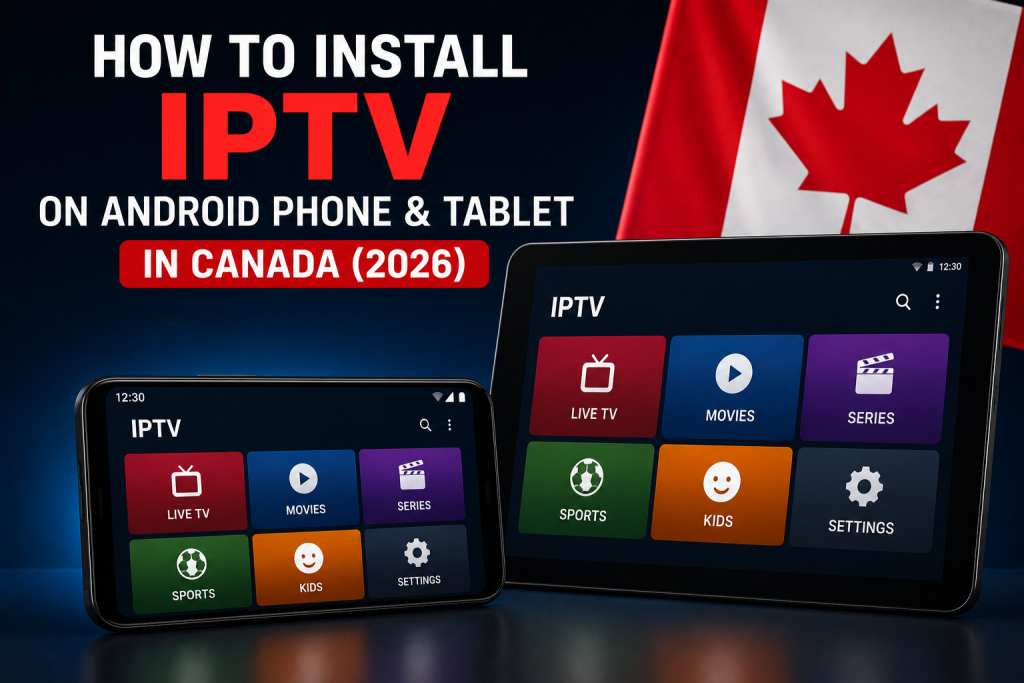
You can use IPTV on an Android phone or tablet by installing a compatible IPTV player from Google Play, then adding the subscription details supplied by your provider. The phone or tablet, the player app, and the subscription are three separate parts of the setup.
This guide is written for Android mobile devices in Canada—not televisions running Android TV or Google TV. App availability, menus, and features can vary by device, Android version, region, and developer support. For a broader comparison of supported hardware, start with the IPTV device compatibility guide for Canada.
Can you use IPTV on an Android phone or tablet?
Yes, provided the device can run a compatible player and has a stable internet connection. A phone offers a portable, touch-first experience; a tablet provides more screen space while using much the same Google Play installation process. Compatibility is not universal, so check the live app listing against your exact device before installing.
Android phones and tablets are useful for viewing on a personal screen, confirming that credentials load, or using service away from a television. They are not identical to a living-room device: controls are touch-based, cellular data may be involved, and casting depends on the player and receiving hardware. FoxTele’s device section provides a quick overview of the wider device categories.
What you need before setting up IPTV
- An Android phone or tablet with access to Google Play.
- A stable Wi-Fi or cellular connection.
- Enough free storage to install and run the chosen player.
- A compatible IPTV player from a trusted publisher.
- Your IPTV subscription details, kept private and copied exactly.
Google recommends obtaining Android apps through Google Play and warns that apps from unknown sources can put a device and personal information at risk. Use the official store as the default route and verify the developer before tapping Install. See Google’s instructions for downloading apps on an Android phone or tablet.
Keep credentials private: do not post login screenshots, share passwords publicly, enter details into unknown websites, or send them to an unverified third party. Use a trusted player and the support channel for your subscription provider.
Android device, IPTV player, and subscription are separate
- Android phone or tablet: the mobile hardware and Android operating system.
- IPTV player: third-party software that can load compatible subscription information and present it on the device.
- IPTV subscription: separate service access and credentials provided by a subscription provider.
Installing a player does not automatically provide channels, service access, or a FoxTele subscription. FoxTele supplies the subscription; third-party players may have their own advertisements, accounts, premium upgrades, activation charges, privacy practices, and terms.
Step 1: Find a compatible IPTV player in Google Play
- Open Google Play on the Android phone or tablet.
- Search for an IPTV player, then confirm the exact app name and publisher.
- Read the current listing for phone or tablet compatibility, supported Android versions, login formats, recent updates, pricing, and in-app purchases.
- Choose a well-maintained player that accepts the credential format supplied with your subscription.
There is no single player that is best for every Android device or subscription format. Store visibility can change with region, device certification, Android version, and developer decisions. Avoid similarly named clones and do not substitute a random APK site when a preferred app is absent.
Step 2: Install and review the player
- Tap Install on the verified Google Play listing.
- Wait for installation to finish, then open the app.
- Review requested permissions before allowing them. A player should not receive unrelated access merely because it asks.
- Check whether the app requires a separate player account, activation, or premium feature purchase.
Android lets users allow or deny requested access and change it later in app settings; Google’s app-permission guidance explains the controls. Exact wording can differ across Android versions and manufacturer interfaces.
Leave Google Play Protect enabled. Google says it checks apps for harmful behaviour, warns about potentially harmful software, and is recommended to remain on. Review the official Google Play Protect guidance rather than treating a security warning as something to bypass.
Step 3: Add your IPTV subscription details
Open the player and choose its option to add a playlist, service, profile, or user. The terminology is controlled by the app. Depending on the supported login method, the screen may request a playlist name, username, password, server URL, or playlist/M3U URL.
- Use a neutral profile name that helps you recognize the subscription.
- Copy each supplied field exactly, including punctuation and capitalization.
- Check for accidental spaces before or after a value.
- Save or add the profile and allow the first data load to complete.
Never use real credentials in a public tutorial, forum post, or screenshot. If the player displays different fields from those supplied, confirm that it supports your subscription format instead of guessing or converting private details through an unknown website.
Step 4: Check channels, categories, and EPG
After the profile loads, confirm that the player shows the expected sections and that a sample stream opens. Check basic touch navigation, search, orientation, and the electronic program guide (EPG) if the player supports one. Category names and guide layouts differ between players, so do not expect every app to look identical.
- If nothing loads, recheck the credentials and subscription status.
- If only the guide is missing, look for a refresh or EPG update option in the trusted player.
- If guide times are wrong, check the device date, time zone, and any player-specific EPG offset before changing subscription details.
What if the preferred IPTV player is not available?
An app may be hidden because of the Android version, device compatibility, region, Play Protect certification, or a developer decision. First verify the spelling and publisher, then check the developer’s official website and live Google Play listing. Where appropriate, update Android and search again, or choose another trusted player that supports the required login format.
Do not respond by disabling Play Protect or downloading a similarly named package from an unknown mirror. Google notes that connection quality, available storage, system updates, and a device restart can affect Play Store installations; its Google Play download troubleshooting is a safer starting point.
Common IPTV problems on Android phones and tablets
App will not install
Confirm that the device has a reliable connection and sufficient free storage. Check whether Google Play marks the app as compatible. Restart the Play Store or device, and install any update legitimately available for that hardware. Google’s Android update guidance notes that availability and timing vary by device, manufacturer, and carrier.
App will not open or keeps closing
Close and reopen the player, restart the phone or tablet, and check for a player update. Free some storage if the device is nearly full. If only one player repeatedly fails while other trusted apps work, test another compatible player instead of weakening Android security.
Subscription details are rejected
Re-enter the details exactly and remove accidental spaces. Confirm that the subscription is active and that the selected login method matches what the player accepts. If the credentials still fail, contact the subscription provider rather than posting them publicly.
Channels do not load
Refresh the playlist or profile, then test the connection with another trusted app. A failed load can involve the network, subscription status, player, or temporary service conditions. Testing one factor at a time is more useful than repeatedly reinstalling everything.
Playback pauses or buffers
Move closer to the Wi-Fi access point, pause heavy downloads, or test another stable network when practical. Close and reopen the player, restart the device or router, and compare more than one stream. Performance can depend on the connection, congestion, device resources, player, stream quality, and other network activity; no setup can guarantee zero buffering.
EPG is missing or shows the wrong time
Refresh the guide, verify the Android date and time zone, and review any EPG setting exposed by the player. The guide may populate separately from the channel list. If it remains absent, ask whether the supplied subscription format includes guide data compatible with that player.
Wi-Fi vs mobile data for IPTV
Either Wi-Fi or cellular data can work when the device, player, network, and subscription permit it. Neither is always faster. Compare stability, signal strength, congestion, latency, and available data rather than relying only on a speed-test headline.
Video streaming can use significant mobile data. Consumption varies with resolution, viewing time, stream characteristics, and player behaviour. Before watching over cellular data in Canada, review your mobile plan and potential carrier charges, monitor usage, and consider a trusted Wi-Fi connection when your allowance is limited.
Tips for better IPTV playback on Android
- Keep the player and Android version current when updates are available for the device.
- Maintain free storage and close heavy downloads or unneeded background activity.
- Use a stable connection and improve router placement or Wi-Fi signal when needed.
- Restart the player, device, and router as separate troubleshooting steps.
- Test another trusted compatible player if the problem is isolated to one app.
- Do not routinely disable security, permissions controls, or battery protections.
Exact update menus vary across Android versions and manufacturer interfaces. Google’s current instructions for checking and updating Android are a useful reference, but the newest Android version may not be available for older hardware.
Can you cast IPTV from Android to a TV?
Some players may offer Google Cast when both the app and receiving device support it. Google’s Cast-enabled app instructions require compatible hardware and describe using the same Wi-Fi network. The Cast button and behaviour are controlled by the app, so availability should not be assumed.
Casting from a phone is different from installing a player directly on a television or streaming box. If you want a remote-friendly living-room setup that does not depend on the phone during playback, use the dedicated Android TV and Google TV IPTV setup guide.
Android phone/tablet vs other IPTV devices
Choose an Android phone or tablet for portability, touch controls, and quick personal viewing. Choose a TV-oriented platform when you want a remote, a larger screen, and a fixed living-room setup. A computer may suit keyboard-based management. If your household uses Apple mobile devices instead, the installation workflow is covered separately in the iPhone and iPad IPTV setup guide.
Frequently asked questions
Can I use IPTV on an Android phone or tablet?
Yes, when the device can install a compatible IPTV player and has a suitable network connection. The player must support the credentials supplied with the separate IPTV subscription.
Do I need a separate IPTV subscription?
Yes. An IPTV player is only the application used to load compatible access details; installing it does not provide a subscription or channels.
Which IPTV player should I choose for Android?
Choose a trusted, currently maintained Google Play app that supports your device and the login format supplied by your provider. Review the developer, compatibility, features, permissions, and separate fees rather than assuming one player is best for everyone.
Why can’t I find an IPTV player in Google Play?
Availability can vary with device compatibility, Android version, region, certification, or developer decisions. Verify the exact publisher, check the official developer source, update the device where appropriate, or choose another trusted compatible player.
Can IPTV work over mobile data?
It can when the app, subscription, and cellular connection permit it, but video can use significant data. Consider signal quality, your Canadian mobile plan, possible charges, and stream quality before extended viewing.
Why is IPTV buffering on my Android device?
Possible causes include an unstable connection, Wi-Fi or cellular congestion, background downloads, device resources, the player, or stream conditions. Test the network and player separately and avoid assuming one cause.
Can I cast IPTV from my Android phone to a TV?
Only if the player implements casting and the receiving device is compatible. Both normally need the required network setup. Casting support should be confirmed in the current app documentation or interface.
Do I need a VPN for IPTV on Android?
A VPN is not automatically required for Android IPTV setup. Network privacy tools can have their own terms and performance effects; they should not be used to evade geographic restrictions, licensing controls, provider terms, or applicable law.
Need help setting up FoxTele on Android?
Already have a FoxTele subscription? Contact support if you need help choosing or configuring a compatible Android player. If you are still comparing subscription periods, review the available FoxTele Canada plans. You can also find general answers in the FoxTele FAQ or use the Contact Us page.