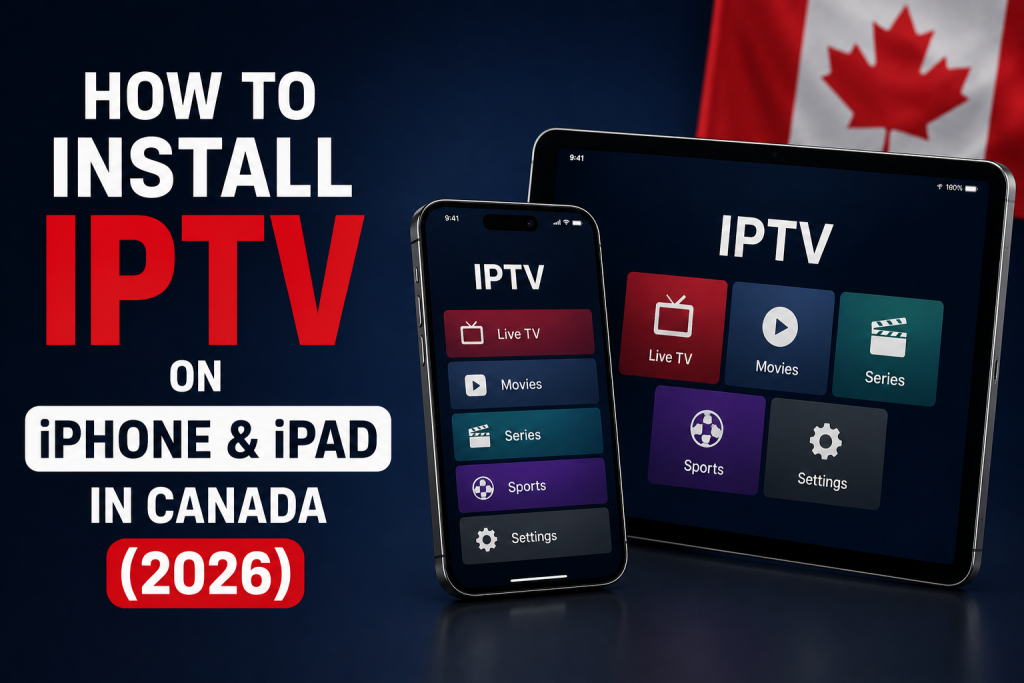
To use IPTV on an iPhone or iPad, install a compatible player from Apple’s App Store and then add the separate subscription details supplied for your service. The player, subscription, and Apple device are different parts of the setup, and availability can vary by App Store region, device, software version, and developer support.
This guide focuses on App Store installation, credential entry, channel and EPG checks, AirPlay considerations, and troubleshooting for iPhone and iPad users in Canada. For a broader comparison with televisions, streaming sticks, Android devices, and computers, see the IPTV device compatibility guide.
Can you use IPTV on iPhone and iPad?
Yes, when the device can run a compatible IPTV player and has a reliable internet connection. iPhone and iPad share the same basic App Store workflow, so the setup normally does not need to be repeated as two separate tutorials. The player interface may adapt to the larger iPad display, but the exact layout depends on the app.
Compatibility is not universal. A player can require a newer iOS or iPadOS release, support only certain credential formats, be unavailable in the Canadian App Store, or be removed by its developer. Check the live listing on the exact device rather than relying on an old screenshot or app list.
What you need before setting up IPTV
- An iPhone or iPad with a supported version of iOS or iPadOS
- An Apple Account configured for the App Store
- A stable Wi-Fi or cellular connection
- A compatible IPTV player from a developer you can verify
- The private subscription details supplied for your order
- Enough device storage for the app, updates, and temporary data
If you are still confirming which hardware to use, review the homepage device compatibility section before changing your setup.
iPhone or iPad, IPTV player, and subscription are separate
- iPhone or iPad: the Apple hardware running iOS or iPadOS.
- IPTV player: the third-party application used to load compatible access details and navigate content.
- IPTV subscription: the separate service access and credentials entered into the player.
Installing a player does not provide channels or activate FoxTele. FoxTele supplies the subscription service. A third-party player may have its own purchase price, recurring premium plan, activation requirement, account system, privacy policy, and terms.
Step 1: find a compatible IPTV player in the App Store
Open the App Store and search for an IPTV player supporting the credential format supplied with the subscription. Apple’s official guides explain how to review and download apps on iPhone and iPad. A listing can show its developer, compatibility, privacy information, in-app purchases, supported languages, age rating, and other details.
Do not choose an app only because a tutorial calls it the best. Before installing, check:
- The developer or publisher shown in the live App Store listing
- Compatibility with your iPhone or iPad and current software
- Support for the login or playlist format you received
- Whether EPG and other features you need are documented
- Any separate purchase, premium, or activation terms
- Recent developer support and update information
Step 2: install and open the IPTV player
- Open the verified App Store listing.
- Tap Get or the displayed price and authenticate if requested.
- Wait for the installation to complete, then open the app.
- Review the player’s terms and any separate pricing before continuing.
- Read each permission request and grant only the access needed for a feature you intend to use.
Apple lets users review or change access granted to third-party apps under Privacy & Security. Its app-permission guidance also explains that a permission can be changed later. Do not assume access to contacts, photos, location, or other personal data is required merely because an app requests it.
The App Store is the default installation route for this guide. Do not jailbreak the device, install unknown IPA packages, use cracked or modified apps, or disable Apple security controls merely to obtain a player.
Step 3: add your IPTV subscription details
Open the player and look for its option to add a user, account, or playlist. The exact screen depends on the application and is not universal. Possible fields can include a local playlist name, username, password, server address, or playlist/M3U URL.
- Select the login method matching the details you received.
- Enter a recognizable local profile name if requested.
- Enter the supplied values exactly, preserving capitalization, punctuation, and the full address.
- Save the profile and allow the initial synchronization to finish.
Treat subscription credentials like a password. Do not post screenshots containing them, paste them into unknown conversion websites, share them publicly, or send them to an unverified third party. If the player does not accept the supplied format, use another compatible player or contact support rather than altering private server details from an unrelated tutorial.
Step 4: check channels, categories, and the EPG
After the initial load, verify the setup in a simple order:
- Confirm that expected channel groups have loaded.
- Check movie or series sections only if the subscription and player provide them.
- Open several items and test picture, sound, and touch controls.
- Rotate the device if the app supports landscape playback.
- Open the electronic program guide if available and confirm the device time zone.
Players can organize categories differently. A missing EPG or section can involve the player’s interface, the initial guide refresh, device time settings, or supplied data rather than iOS or iPadOS itself.
What if the preferred IPTV player is not available?
Verify the spelling and developer name, search from the device itself, and check the developer’s official website for its current App Store destination. Availability can change with region, device compatibility, iOS or iPadOS version, App Store restrictions, and developer decisions.
- Check whether the live listing supports the exact device.
- Install an appropriate Apple software update when one is available.
- Review Screen Time or App Store restrictions that may block installation.
- Choose another verified App Store player supporting the required credential format.
An unofficial IPA download is not a safe replacement for a missing listing. It may be outdated, modified, incompatible, or distributed by someone other than the developer.
Common IPTV problems on iPhone and iPad
The app will not install
Confirm the App Store listing supports the device and current software, check the internet connection and Apple Account, review installation restrictions, and make sufficient storage available. If the listing says the device is incompatible, do not attempt to force an unofficial copy onto it.
Login details are rejected
Make sure the selected login method matches the supplied format. Remove accidental spaces and recheck similar characters. If the credentials fail in another compatible setup, contact support instead of replacing the supplied server address with one found online.
Channels do not load
Allow the first synchronization to finish, verify that the device is online, and reopen the player once. Test more than one category or item and record the exact error before requesting help.
Playback keeps buffering
Buffering can involve Wi-Fi or cellular quality, network congestion, household traffic, stream quality, the player, background activity, or device performance. Reopen the app, test connection stability where the device is being used, pause competing downloads, reconnect Wi-Fi, and restart the router when appropriate. No app or device can guarantee zero buffering.
The EPG is missing or shows the wrong time
Confirm the device date, time, and time zone, allow the initial guide import to finish, and use the player’s documented refresh option once. EPG availability and offset controls vary by application and supplied data.
The app freezes or closes
Close and reopen the app, restart the device, check free storage, and install an available player update. Apple’s App Store update guidance explains how automatic and manual app updates work. If an appropriate system update is available, review Apple’s iOS update instructions and back up the device first. An update can resolve compatibility problems, but it is not a guaranteed playback fix.
Tips for better IPTV playback on iPhone and iPad
- Keep the player and device software current through Apple’s official update paths.
- Leave enough free storage for app updates and temporary data.
- Test Wi-Fi quality where you normally use the phone or tablet.
- Reduce competing network activity while diagnosing playback.
- Use a player supporting the actual credential format you receive.
- Change one troubleshooting factor at a time so the result is clear.
Streaming over cellular data can consume a substantial part of a mobile plan. Usage varies with video quality, duration, application behaviour, and network conditions. Review your plan and possible carrier charges rather than relying on a single universal data estimate.
Can you watch iPhone or iPad IPTV on a TV?
Some players can send compatible video through AirPlay, and screen mirroring may be available in other cases. Apple’s AirPlay instructions say the iPhone or iPad and receiving Apple TV, AirPlay-compatible television, or Mac should use the same Wi-Fi network. Apple also notes that some video apps may not support AirPlay.
Actual results depend on the player’s implementation, receiving device, network, and content restrictions. If the player does not support reliable larger-screen playback, a native television or streaming-device setup may be more practical than repeatedly mirroring a mobile screen.
iPhone and iPad vs other IPTV devices
An iPhone is convenient for portable or secondary viewing, while an iPad offers a larger touch display using a similar setup. For a permanent living-room interface controlled by a remote, follow the broader Smart TV IPTV setup guide. If the television or streaming box uses Google’s platform, the dedicated Android TV and Google TV IPTV guide covers Google Play, remote navigation, storage, and TV-specific troubleshooting.
Choose according to the screen, controls, app availability, network, and viewing location you actually use. Mobile is not automatically better or worse; it solves a different setup need.
Frequently asked questions
Can I use IPTV on an iPhone?
Yes, when the App Store offers a compatible player for the device and you have valid subscription credentials. Availability can vary by region, software version, device compatibility, and developer support.
Can I use IPTV on an iPad?
Yes. The basic App Store and credential-entry workflow is similar to iPhone. The larger iPad display can change the player layout, but features still depend on the application.
Do I need an IPTV player and a subscription?
Yes. The player is the application used to load access details. The separate IPTV subscription supplies the service credentials. Installing a player alone does not provide channels or FoxTele service.
Which IPTV player works on iPhone or iPad?
Use a current player shown as compatible in the live App Store listing on the exact device. Confirm the developer, accepted credential format, EPG features, update status, privacy information, and any separate purchase terms instead of assuming one player is universally best.
Why can’t I find an IPTV app in the App Store?
The developer may have changed its listing, or the app may not support the region, device, account restrictions, or current iOS or iPadOS version. Verify the official developer information or choose another compatible App Store player rather than using an unofficial IPA.
Can IPTV use cellular data?
Yes, when the player and subscription work over the mobile connection. Video can use significant data, so review the mobile plan, current network conditions, video quality, and potential carrier charges before extended viewing.
Does AirPlay work with every IPTV player?
No. The receiving device and network must support AirPlay, and the player itself may restrict or omit AirPlay video. Check the player’s current documentation and App Store listing.
Do I need a VPN for IPTV on iPhone or iPad?
A VPN is not inherently required for an iPhone, iPad, IPTV player, or subscription to operate. If you use one for an appropriate privacy or security purpose, follow applicable law and the terms of the service, player, platform, and content provider. Do not use it to evade access or geographic restrictions.
For additional setup, billing, renewal, and policy answers, visit the FoxTele Canada FAQ. For an order-specific issue, use the contact page.
Need help setting up FoxTele on iPhone or iPad?
Already have a FoxTele subscription? Contact support with the device model, software version, player name, login method, and exact error if you need help choosing a compatible player or entering your subscription details. If you are still comparing subscription periods, review the FoxTele Canada plans first.