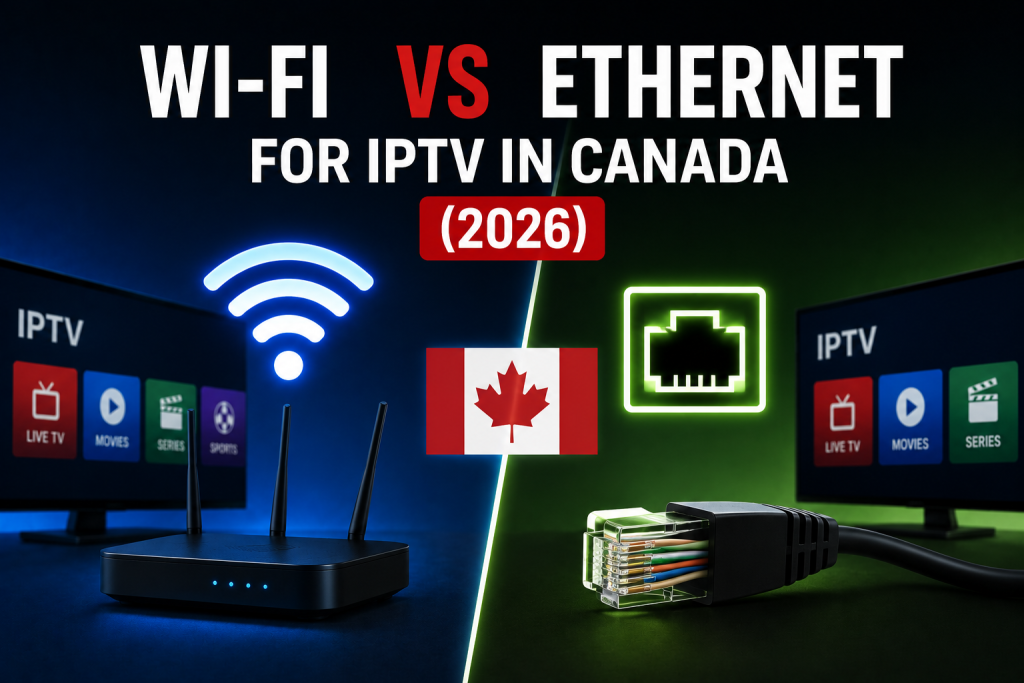
Ethernet often gives a stationary IPTV device a more consistent local connection, but good Wi-Fi can be entirely sufficient. The right choice depends less on the highest speed number and more on signal stability, router distance, interference, device support, and what happens when you compare both connections under the same conditions.
Wi-Fi vs Ethernet for IPTV: which is better?
For most fixed televisions and streaming boxes, Ethernet is worth using when the cable is practical and the device supports it. The wired link removes Wi-Fi interference from the path between the device and router, which can make performance more predictable.
That does not mean Ethernet is always faster or that Wi-Fi is unsuitable for IPTV. A nearby device on a strong, uncongested wireless connection may stream reliably for hours. Ethernet also cannot correct a problem farther upstream, such as household internet congestion, a player issue, or a problem affecting a particular stream. If the symptoms extend beyond connection choice, use our IPTV buffering troubleshooting guide to isolate the wider cause.
The short answer
- Choose Ethernet when practical for a stationary device, especially if Wi-Fi is inconsistent or the signal must cross several rooms.
- Keep using Wi-Fi when it is already stable, the router is reasonably close, or a cable would be impractical.
- Treat Ethernet as a diagnostic test, not proof. Improvement over a cable can suggest that the wireless link was contributing; no improvement points you beyond Wi-Fi.
- Check device compatibility first. Some televisions and streaming devices have a built-in network port, while others need a specifically supported adapter or offer Wi-Fi only.
Speed vs stability: why the difference matters
A speed test usually reports how quickly data moved during a short test. Streaming also depends on whether data keeps arriving consistently. A connection can show a high peak speed yet still experience brief signal drops, interference, packet loss, latency variation, or competition from other devices. Those short interruptions can matter even when the headline result looks impressive.
Canada’s internet authority CIRA explains that connection testing can include download and upload speed, latency, jitter, and packet loss. Its internet performance troubleshooting guidance is a useful reminder that speed is only one part of connection quality.
Practical takeaway: for IPTV, a steady connection that comfortably carries the stream can be more useful than a faster connection that fluctuates.
Your local network is only part of the path
It helps to separate two links:
- Device to router: the local connection inside your home, using Wi-Fi or Ethernet.
- Router to the internet and streaming path: the connection beyond your home network.
Switching to Ethernet mainly changes the first link. It can remove weak signal and wireless interference as variables, but it cannot automatically repair upstream congestion, internet routing, service-side conditions, a faulty stream, or an overloaded player. This is why a wired comparison is useful without being a guaranteed fix.
How Wi-Fi can affect IPTV
Distance and obstacles
Wireless performance can change with router distance and physical barriers such as walls, floors, cabinets, and large objects. The signal indicator on a television is a useful clue, but it does not show every momentary interruption. Google’s official Wi-Fi troubleshooting guidance identifies distance, device capability, frequency, physical barriers, neighbouring networks, and other interference sources as factors that can affect performance.
Interference and shared airtime
Wi-Fi uses shared radio space. Nearby networks and household devices can contribute interference, while every active device on the home network competes for available capacity. A large download, cloud backup, game update, or several simultaneous video streams may change playback even though the IPTV device has not moved.
Device differences
The wireless hardware inside a television, streaming stick, laptop, phone, or tablet is not identical. An older or less capable device may perform differently from a newer device in the same room. Router capability matters too, but buying a new router should not be the first reaction; compare locations and connection methods before spending money.
How Ethernet can affect IPTV
Why wired connections can be more consistent
An Ethernet cable provides a direct local link between the device and router. It is not exposed to the same walls, radio interference, or changing wireless signal strength. For a fixed device, this can make the local connection easier to test and more predictable.
Ethernet has limitations too
Not every IPTV device has an Ethernet port. Some require a manufacturer-supported adapter, and compatibility can vary by model. Cable placement may be inconvenient, and the cable, adapter, port, or other network equipment can become the limiting component. Ethernet should therefore be checked rather than assumed to be perfect.
Wi-Fi vs Ethernet comparison
| Factor | Wi-Fi | Ethernet |
|---|---|---|
| Convenience | No cable between device and router | Requires a cable route or supported adapter |
| Mobility | Suitable for phones, tablets, and portable devices | Best suited to stationary devices |
| Interference exposure | Can be affected by distance, obstacles, and radio congestion | Removes the wireless hop from the local path |
| Connection consistency | Can be excellent with a strong, clean signal | Often more predictable when equipment is working correctly |
| Device compatibility | Built into most modern streaming devices | Port or verified compatible adapter required |
| Best use case | Stable wireless homes and mobile devices | Fixed devices or troubleshooting unstable Wi-Fi |
Is Wi-Fi good enough for IPTV?
Yes, Wi-Fi may be completely reasonable when playback is already stable. You do not need to run a cable simply because wired networking is theoretically more predictable. Keep Wi-Fi when the device has a strong connection at its actual location, streams play reliably, household activity does not disrupt playback, and cabling would add little practical value.
When testing, use the IPTV device in its normal position. A speed test on a phone beside the router does not represent the signal at a television in another room. Compare results and real playback at the location where the problem occurs.
When Ethernet makes more sense
- The IPTV device stays beside the television and a cable is easy to route.
- Playback changes as people move around the home or other wireless activity increases.
- The device is far from the router or separated by several obstacles.
- Wi-Fi works inconsistently despite sensible placement and a network restart.
- You want to remove the wireless link as a diagnostic variable.
If playback is already reliable over Wi-Fi, switching may not create a visible improvement. Consistency—not a theoretical winner—is the goal.
2.4 GHz vs 5 GHz Wi-Fi for IPTV
The bands involve a trade-off rather than a universal winner. In general, 2.4 GHz can reach farther, while 5 GHz can provide higher throughput at shorter range. Google’s official explanation notes that 2.4 GHz signals can travel farther and that compatible devices may choose a band based on signal strength, distance, security, and device capability. See Google’s Wi-Fi band guidance for the platform-specific details.
- Try 5 GHz when the streaming device is relatively close and the band provides a strong, stable connection.
- Try 2.4 GHz when distance or obstacles weaken the shorter-range option.
- Let automatic band steering work when the router uses one network name and chooses a band automatically.
Do not force a band change merely because its name sounds faster. Test sustained playback in the device’s real location.
What if your IPTV device has no Ethernet port?
First check the device manufacturer’s documentation. A streaming device may support a specific Ethernet accessory, but a generic adapter is not automatically compatible. Do not buy an adapter solely because its connector fits.
If wired support is unavailable, improve the wireless conditions you can control: place the router in a more open position where practical, reduce distance, compare supported Wi-Fi bands, pause heavy downloads, and restart the network equipment without factory-resetting it. A stable Wi-Fi result is still a valid result.
IPTV buffers on Wi-Fi but works on Ethernet
That pattern can suggest that the local wireless link is contributing, especially when you test the same device, player, stream, and time period. Use a controlled comparison:
- Check whether one stream or many streams are affected.
- Check another legitimate streaming app on the same device.
- Pause large downloads, backups, or other heavy household traffic.
- Restart the IPTV player, then the device.
- Test Wi-Fi from the normal device location.
- Move closer to the router temporarily, if practical, and compare.
- Test another supported Wi-Fi band if the router and device allow it.
- Connect Ethernet temporarily using a built-in port or verified compatible adapter.
- Compare the same content under similar conditions for long enough to observe the pattern.
If Ethernet is consistently better, router distance, interference, congestion, or the device’s wireless capability becomes more likely. It is not absolute proof: a loose cable, different test time, or changing stream condition can affect the comparison.
IPTV buffers on both Wi-Fi and Ethernet
Look beyond the wireless link. Check whether the issue affects one stream or everything, whether another streaming app behaves normally, whether the device or player needs an update, and whether heavy network activity is occurring. Restarting the router can be a reasonable diagnostic step, but it is not a cure-all and does not require a factory reset.
A high speed result does not rule out intermittent connection quality, and neither Wi-Fi nor Ethernet can correct every upstream or stream-specific problem.
Wi-Fi vs Ethernet by device type
Smart TVs
Some Smart TVs offer both Wi-Fi and Ethernet; others do not. Port capabilities and network menus vary by model, year, and platform. Confirm your television’s specifications, then use our Smart TV IPTV setup guide for the platform-specific player workflow.
Fire TV devices
Many streaming-stick setups use Wi-Fi, while Ethernet may require a compatible adapter. Verify the exact Fire TV model and accessory support rather than assuming every USB adapter works. The Firestick IPTV setup guide covers the player and subscription steps separately.
Android TV and Google TV devices
Integrated televisions and external streaming devices can have different ports and adapter support. Google’s Google TV troubleshooting guidance recommends checking the Wi-Fi connection, moving the router closer, and using a cable when the device supports one. For installation and login details, see the Android TV and Google TV IPTV guide.
Computers, phones, and tablets
A laptop or desktop may offer both connection methods, making it useful for comparison. Phones and tablets are normally wireless, so location, band choice, and household traffic matter more. Do not assume the result on one device proves that another device has the same network conditions.
Common mistakes to avoid
- Assuming Ethernet guarantees no buffering.
- Assuming Wi-Fi is bad because one room has a weak signal.
- Testing on a phone beside the router instead of at the IPTV device.
- Changing multiple settings at once, which hides the real cause.
- Buying a router or adapter before confirming compatibility and comparing connections.
- Factory-resetting the router for a routine playback problem.
- Changing DNS, MTU, port forwarding, firewall, or arbitrary QoS settings as a generic fix.
- Using a VPN to solve weak Wi-Fi; it cannot repair the local wireless link and may add routing overhead.
Frequently asked questions
Is Ethernet better than Wi-Fi for IPTV?
Ethernet often provides a more predictable local connection for a stationary device because it avoids wireless interference. Good Wi-Fi can still be fully sufficient, and Ethernet does not guarantee that buffering will stop.
Is Wi-Fi good enough for IPTV?
Yes. If the signal is strong at the device, interference is limited, and playback remains stable during normal household use, there may be no practical reason to add a cable.
Does Ethernet stop IPTV buffering?
Not necessarily. It can remove Wi-Fi as a contributing factor, but buffering may still involve the internet path, household congestion, the device, the player, or a particular stream.
Is 5 GHz always better than 2.4 GHz for IPTV?
No. A nearby device may benefit from 5 GHz, while 2.4 GHz may provide a stronger connection over longer distance or through obstacles. Device and router behaviour also varies.
Why does IPTV buffer on Wi-Fi but work on Ethernet?
The comparison may indicate weak signal, interference, wireless congestion, distance, or device Wi-Fi limitations. Repeat the test under similar conditions before treating it as a firm diagnosis.
Why does IPTV still buffer on Ethernet?
The cause may be outside the local Wi-Fi link, such as household internet congestion, a cable or adapter issue, device or player performance, or stream-specific conditions. Check another stream and another app before changing network settings.
Can a Firestick use Ethernet?
Some Fire TV devices can use Ethernet with a compatible accessory, but support varies. Check Amazon’s documentation for the exact device and adapter instead of assuming a generic adapter will work.
Do I need a faster router for IPTV?
Not automatically. First compare playback at the device location, reduce heavy network activity, restart the existing equipment, and test Ethernet if supported. Consider new hardware only after identifying a real coverage, capacity, or compatibility limitation.
Still having IPTV connection problems?
If you are a FoxTele customer and playback still buffers after comparing Wi-Fi and Ethernet, send support the device type, player or app, connection method, whether one or all channels are affected, whether another streaming app works normally, and whether the Ethernet test changed the result. Never post passwords or private subscription credentials publicly.